AI photo editor: edit a picture by just describing the change
How an AI photo editor works when you describe the change instead of using sliders, with real prompts for backgrounds, style, lighting and objects.
By AiFevo Team ·
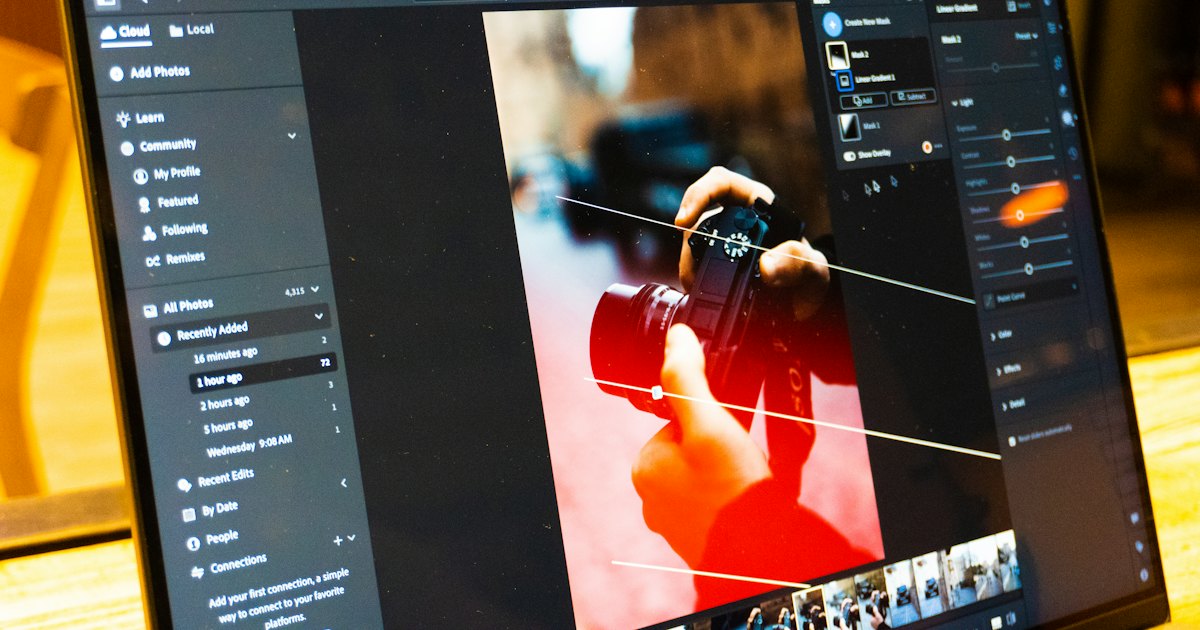
Quick answer: An AI photo editor lets you change a picture by describing what you want in words, rather than dragging sliders or using layers. Upload a photo, describe the change, such as a new background, a different style or an object removed, and get an edited result in under a minute. It's faster than traditional editing for many everyday changes, though it still has limits worth knowing.
An AI photo editor lets you change a picture by describing what you want in words, rather than dragging sliders or using layers. Upload a photo, describe the change, such as a new background, a different style or an object removed, and get an edited result in under a minute. It’s faster than traditional editing for many everyday changes, though it still has limits worth knowing, and AiFevo’s Image Studio works exactly this way.
How it works
In Image Studio, tap the plus button to upload or take a photo, then describe the change in plain language, the same way you’d brief a person doing the edit for you:
“Replace the background with a clean, bright studio backdrop. Keep the subject exactly as they are.”
The result appears in under a minute, saved to your Library, where you can download it, copy it or edit it again.
Common edits and how to ask for them
Changing the background
“Replace the background with a softly blurred outdoor park scene, keep the lighting on the subject the same.”
Changing the style
“Make this look like a watercolour painting, keep the composition exactly as it is.”
Improving lighting
“Brighten the photo slightly and make the lighting a bit warmer, without changing anything else.”
Removing something distracting
“Remove the cup in the background, fill the space naturally.”
One change at a time works best
If a result is close but not quite right, describe exactly what to adjust rather than starting over with a longer, more complicated prompt:
“Same edit, but make the background a bit darker.”
This mirrors how you’d actually direct a person editing the photo for you: one clear instruction, check the result, adjust.
What AI photo editing does well, and where it struggles
It’s genuinely strong at background changes, style transformations and overall lighting and mood adjustments, since these are broad, holistic changes that suit how these models work. It’s less reliable for very precise, pixel-level changes, like perfectly matching a specific brand colour, or removing a complex object that overlaps with important detail in the photo, where traditional editing tools with fine manual control still have an edge. For small, exact text or logo elements in a photo, results can come out slightly distorted, so it’s worth checking those details closely before using the result anywhere public.
Side by side
| AI photo editor (describe it) | Traditional editing (sliders, layers) | |
|---|---|---|
| Speed | Under a minute per edit | Can take much longer for complex edits |
| Skill needed | None, describe what you want | Requires learning the tool |
| Best for | Backgrounds, style, overall lighting | Precise, pixel-level control |
| Weakest at | Fine detail, exact colour matching, small text | Nothing, if you have the skill and time |
Editing a picture you already made
Pictures you’ve generated in Image Studio can be edited further the same way: open the picture and choose Edit, then describe the next change. This makes it easy to iterate toward a final result over a few quick rounds rather than trying to get everything right in one prompt.
Good uses for AI photo editing
- Product photos: a clean, consistent background across a batch of photos taken in different places.
- Social posts: quickly adjusting mood or style to match your usual look.
- Old or imperfect photos: improving lighting or removing a small distraction.
- Quick mockups: trying a different setting or style before committing to a full reshoot.
For the fuller picture on prompts, shapes and generating pictures from scratch rather than editing an existing one, see our complete AI image generator guide.
Combining edits with text-to-image generation
Photo editing and generating a picture from scratch are two sides of the same tool in Image Studio, and combining them is often the most practical approach. Start by generating a background or scene from a description, then in a separate step edit your own photo to match that mood, or the reverse: edit your photo first and generate a matching graphic to go alongside it for a social post. Keeping both capabilities in the same app means you’re not exporting a half-finished result to a different tool partway through. For generating pictures from a blank description rather than editing an existing photo, see our AI image generator guide.
Frequently asked questions
Can an AI photo editor remove a person from a photo?
It can attempt to, describing the person and asking for them to be removed with the background filled in naturally. Results vary depending on how complex the background behind them is, so check the result carefully, especially around the edges of where they were.
Will editing change parts of my photo I didn’t ask about?
It’s possible for subtle, unintended changes to appear elsewhere in the image, which is why it’s worth reviewing the full result, not just the area you asked to change. If something shifted that shouldn’t have, describe that specifically in a follow-up edit.
Can I undo an edit and go back to the original?
Your original uploaded photo isn’t altered; each edit produces a new result. Keep your original photo if you want to try a different edit direction from scratch rather than editing an already-edited version.
What file formats can I upload?
Image Studio accepts common photo formats like JPEG, PNG and WebP. Check the upload prompt in the app for the current accepted types and size limits.
Is AI photo editing included in AiFevo’s free plan?
Image Studio, including photo editing, is part of the Starter and Pro plans. The Free plan covers chat with a daily message allowance, and you can upgrade when you want to start editing photos.
Edit your first photo by describing it
Upload a photo you want to change and describe the edit in plain language. Start free on AiFevo, and move to a plan with Image Studio to try it. See the AI image generator guide for creating pictures from scratch, AI headshot generator for portrait-specific edits, AI logo generator for brand visuals, and pricing for plan details.